YouTube Sound Out of Sync? A Step-by-Step Fix Guide
Other
You upload a video. It looked clean on your timeline. The edit felt tight. Then YouTube finishes processing, you press play, and the mouth moves before the voice lands.
That kind of youtube sound out of sync problem is maddening because it can come from different places. Sometimes the video file is fine and your browser is the problem. Sometimes the timeline drift started during editing and became obvious after upload. Sometimes YouTube’s transcode exposes a weakness in your export settings that your local player hid.
The fastest way to fix it is to stop guessing. Treat it like a diagnostic funnel. Start with playback. Then inspect the edit. Then audit the export. That order saves time and prevents you from “fixing” the wrong thing.
The Universal Frustration of Unsynced Audio
Audio sync errors ruin trust.
Viewers notice them in tutorials, interviews, gaming videos, reaction content, podcasts, and talking-head explainers. A small delay makes speech feel sloppy. A larger delay makes the whole upload feel broken, even when the visuals are polished.
Creators get hit from both sides. First there is the technical headache. Then there is the public part, comments pointing out a problem you may not have heard during editing. That is why sync issues feel worse than many other post-production mistakes. They are both hard to diagnose and impossible for an audience to ignore.
Some sync problems are local playback glitches. Others are baked into the uploaded file. A good test is simple. If one viewer reports it, check your own device first. If multiple viewers on different browsers and phones report the same drift at the same timestamp, the issue lives in the source or export.
Why sync fails in the first place
Video editing apps, browsers, audio devices, and YouTube itself all handle timing differently. Trouble starts when one part of that chain disagrees with another.
Common examples include:
- Mixed frame rates: A camera clip and a screen recording may not keep time the same way.
- Different audio sample rates: One source may be recorded for video work, another for music or consumer devices.
- Variable frame rate footage: Phones and screen capture tools often create footage that looks normal until you cut or export it.
- Playback decoding issues: Your browser or headphones can make a healthy file appear broken.
If the sync error appears in one browser or with one headset, do not re-edit the project yet. Diagnose playback first.
There is good news here. Sync is technical, but it is not mysterious. Once you separate viewer-side issues from creator-side issues, the path gets clearer. The fixes also become more repeatable, especially if you produce long videos and later cut them into short-form clips.
Quick Fixes When Watching YouTube Videos
You open a video to check a cut, and the speaker’s mouth is landing a beat after the line. Before you assume the upload is broken, test playback like a viewer would. A lot of YouTube sync complaints start in the browser, the device, or the headphones.
For creators, this check saves time. If the problem disappears on another device, you do not need to reopen the project. If it shows up everywhere, you have a stronger case that the issue is in the file, which matters even more when you are repurposing a long video into multiple shorts and need confidence that the source timing is stable.
The fastest viewer-side checklist
Run these in order and stop when the sync returns:
- Reload the video: Temporary buffering or decode hiccups can throw audio ahead of picture.
- Try another browser: Chrome, Edge, and Firefox do not always decode the same stream the same way.
- Test on your phone: A second device is the fastest way to separate local playback from a bad upload.
- Sign out and test again: Browser state, cached settings, and account-level quirks can interfere with playback.
- Clear cache and disable extensions: Ad blockers and media extensions can affect rendering and buffering.
- Switch audio output: Built-in speakers or wired headphones make a better control test than wireless audio.
If you monitor gaming videos or streams, hardware quality matters too. A guide to wireless gaming headsets can help you compare models that are less likely to mislead you during sync checks.
Hardware acceleration is a common culprit
Browser hardware acceleration can make a healthy upload look wrong. As noted earlier in the article, playback guidance from Wondershare ties many reported YouTube sync issues to hardware acceleration conflicts, GPU decoding, and Bluetooth delay.
Use these menu paths:
BrowserWhat to change
Chrome
Settings > System > turn off Use hardware acceleration when available
Edge
Settings > System and performance > turn off Use hardware acceleration when available
Firefox
Settings > General > Performance > uncheck recommended settings, then disable hardware acceleration
Restart the browser after changing it. A tab refresh often is not enough.
If the sync problem disappears after that restart, the upload was likely fine. The problem was local decode, not your edit.
Bluetooth can fake a bad video
Bluetooth audio adds delay. That delay is enough to make dialogue feel off, especially on talking-head videos, interviews, and short clips where viewers notice mouth movements right away.
Check the same video through laptop speakers or wired headphones before you blame the export. If you are reviewing captions at the same time, a subtitle generator for quick transcript checks helps confirm whether the spoken words line up with the visual cut points.
A short walkthrough can help if you want to watch the process instead of reading menus.
How to Find Sync Errors in Your Video Edit
You export, upload, and everything looks fine for the first minute. Then a viewer comments that your mouth stops matching the words halfway through. If multiple people point to the same spot, stop troubleshooting playback. Inspect the edit.
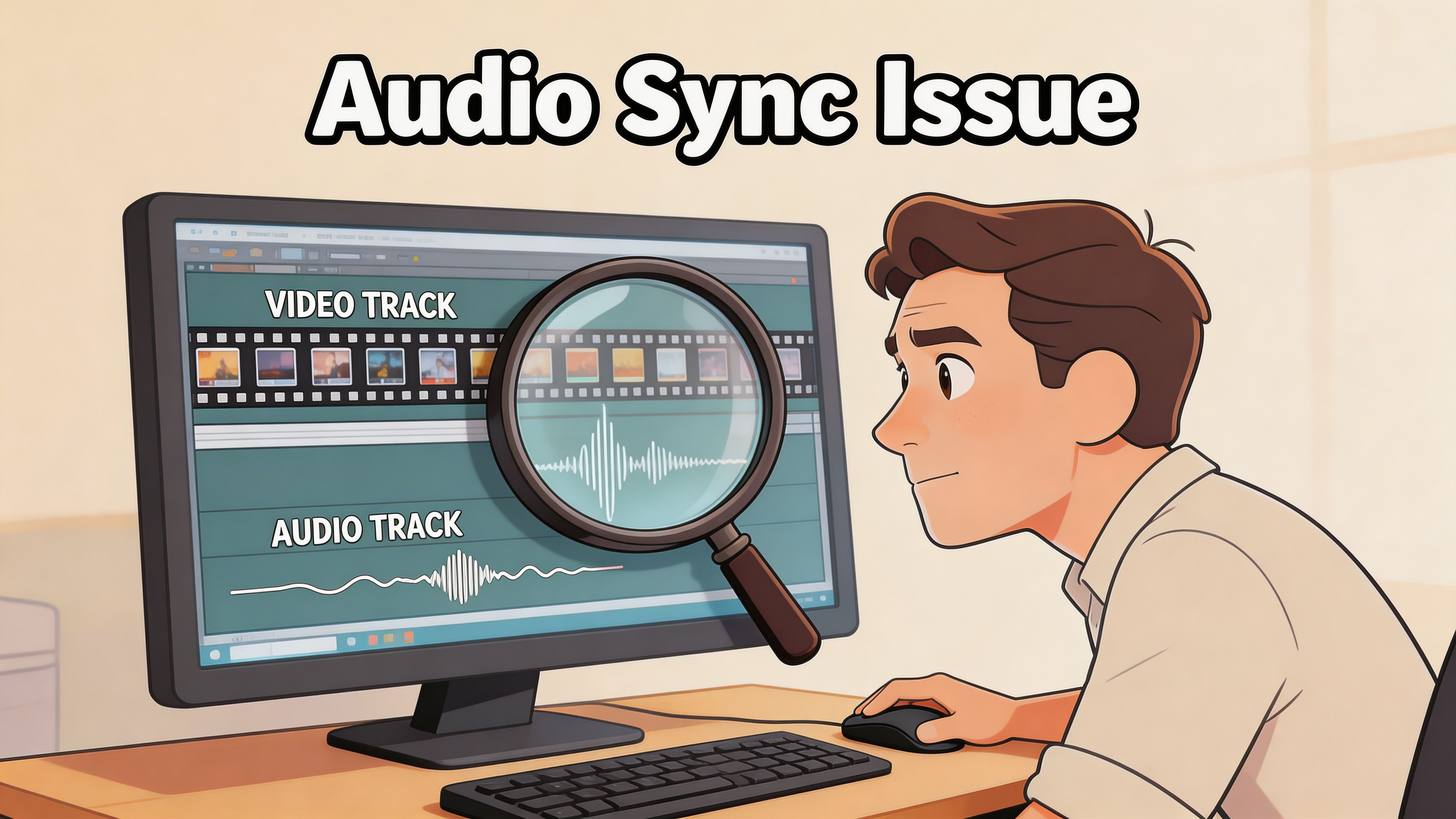
Treat sync errors like a diagnostic job. The goal is to find the first point where timing breaks, not the point where it becomes impossible to ignore. That distinction matters, especially if you plan to cut the same long-form video into shorts later. A small drift buried in a 20-minute edit becomes glaring in a 30-second clip focused on a face.
Check the timeline before you blame the export
Start at the exact timestamp viewers mention. Then move 10 to 20 seconds earlier and look for the edit that introduced the problem.
In Premiere Pro, DaVinci Resolve, Final Cut Pro, and Lightworks, sync usually slips for familiar reasons. A linked clip gets separated during a trim. A nested sequence carries an offset you do not see at the top level. A speed change gets applied after you already synced the take. Multicam edits can do it too if one angle was prepared differently from the others.
Check these first:
- Linked clips: Confirm dialogue and picture still move together where they should.
- Cut points: Zoom in where sync changes suddenly, especially after ripple edits or trims.
- Nested sequences or compound clips: Open them and inspect the internal sync, not just the parent timeline.
- Speed changes and interpreted footage: Retimes can shift audio alignment even if the clip looked fine earlier.
For editors who are still tightening up timeline habits, these essential video editing tips are a good refresher. A lot of sync problems start with ordinary edit decisions, not obscure technical failures.
Mixed frame rates often create slow drift
This is one of the most common problems I see in creator workflows built from several recording tools.
A camera interview might be one frame rate. Screen capture might be another. Phone footage might come in with unstable timing. The project can look fine near the start, then drift later because the sources are not keeping time the same way.
Use a simple inspection pass:
What to inspectWhy it mattersWhat to do
Source clip frame rate
Different sources may drift against each other over time
Check clip properties before editing
Sequence frame rate
The timeline should match the primary footage
Build the sequence around the main camera source
Screen recordings
These files are frequent sync offenders
Test and convert any problem clip before the full edit
Interpreted footage
Forced changes can create timing errors
Recheck interpretation settings on suspect clips
This gets more important if you repurpose long videos into shorts. Shorts magnify sync errors because the framing is tighter, faces are larger, and viewers catch lip-sync mistakes instantly. If you are isolating segments to test before you recut them, a simple video trimmer for checking problem sections makes it faster to review only the affected range.
Sample rate mismatches can fool you at the start
Audio can open in sync and still be wrong.
Most video timelines behave best with 48 kHz audio. Some music files, older recordings, downloaded assets, and external recorder files come in at 44.1 kHz. If those sources are mixed carelessly, the result is often gradual drift instead of an obvious offset at frame one.
The pattern is familiar. The beginning passes a quick review. Several minutes later, consonants hit late and lip movements stop lining up.
If your project combines camera audio, gameplay capture, podcast WAVs, remote interview tracks, or phone clips, standardize first. Use one sample rate across the project, one main sequence frame rate, and one verification routine.
Use a three-point sync check
Do not judge sync from the first few seconds alone.
Check three places: the opening, the middle, and the final minute. Look for hard consonants, claps, hand taps, cuts on speech, or any visible impact point that gives you a precise sync marker. If all three points hold, your timeline is probably stable. If the middle or end drifts, trim-level fixes will only hide the core issue.
That review habit saves time. It also fits the diagnostic funnel this article follows. Viewer-side playback problems can mimic desync, but once you confirm the issue exists at fixed points in the edit, the timeline becomes the right place to work.
Mastering Export Settings to Prevent YouTube Desync
A file can look clean in your editor, export without errors, and still fall apart after upload.
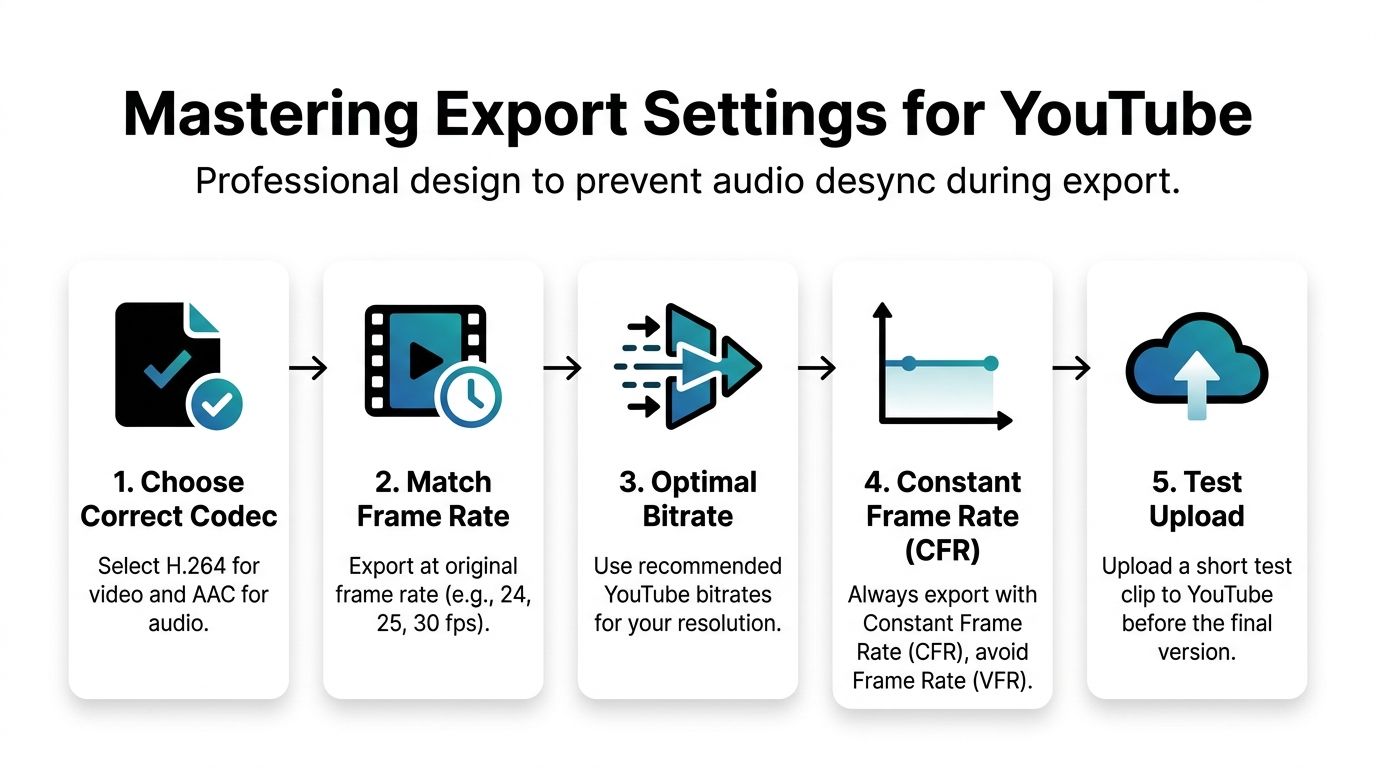
That usually happens because YouTube encodes your video again. If your export already has timing instability, the platform preserves it, and sometimes makes it easier to spot.
Variable frame rate causes more export trouble than creators expect
Phone footage, webcam captures, Zoom recordings, and screen captures often use variable frame rate. That is efficient for recording, but it creates problems in edit and export workflows that depend on consistent timing.
A clip with VFR can seem fine in a quick playback check. Then the exported file drifts during longer sections, especially on speech, screen tutorials, and interview cuts. If you are cutting a long video now and planning to turn it into shorts later, start with clean timing. A repurposing workflow only gets more fragile when the source file is unstable. If you need that workflow, this guide on creating YouTube Shorts from existing video is worth keeping in mind while you set up your master export.
CFR is the safer choice for anything that needs frame-accurate edits.
Export settings that protect sync
Use a short checklist before the final render.
- Convert VFR footage before editing: Do this for phone clips, screen recordings, and any capture that reports a changing frame rate.
- Export at the same frame rate as the timeline: Do not let a preset switch 23.976 to 30, or 30 to 60, unless you have a specific reason and have tested it.
- Use standard delivery codecs: H.264 video with AAC audio is still the practical default for YouTube uploads.
- Keep audio at the project standard: If the timeline is built around 48 kHz, export that way too.
- Run a private test upload: Export and upload a short section with talking-head footage, cuts, and any problem area before committing to the full render.
That last step saves a lot of time. A local media player is not the final judge. YouTube’s transcode is.
Presets save clicks, not troubleshooting time
Export presets are useful until they hide a bad setting.
I see this often in mixed-source projects. A creator cuts together camera footage, gameplay, remote-call video, and separate audio, then exports with a generic YouTube preset and assumes the preset will smooth out the differences. It will not. If the timeline and source media do not agree on frame rate and audio standards, the preset packages the mismatch faster.
As noted earlier, creator reports often trace post-upload sync issues back to mixed frame rates and inconsistent audio settings. The software changes. The pattern does not.
A practical export decision table
SituationBetter choiceRisky choice
Phone footage
Convert to CFR before edit
Edit VFR files directly
Screen recordings
Normalize frame rate first
Trust the capture app’s default output
Mixed-source project
Match timeline to main footage and standardize audio
Export through a generic preset without checking details
Long-form upload
Test a short private upload first
Assume local playback proves the file is safe
Live streams need a different fix path
If the problem happens during a live stream, export settings are not the first place to look. Latency and encoder setup matter more.
For YouTube live streams, Upstream’s YouTube sync troubleshooting guide explains that Normal Latency is often more stable than low-latency modes because it gives the platform more buffer to align audio and video. The same guidance warns that changing latency during a stream can cause blackouts, and that aggressive encoder settings can make drift worse.
High quality is not the goal if timing breaks. A stable export always beats a flashy preset that introduces sync errors.
Build a Sync-Proof Workflow for Repurposing Content
The worst time to discover sync problems is after you start cutting a long video into shorts.
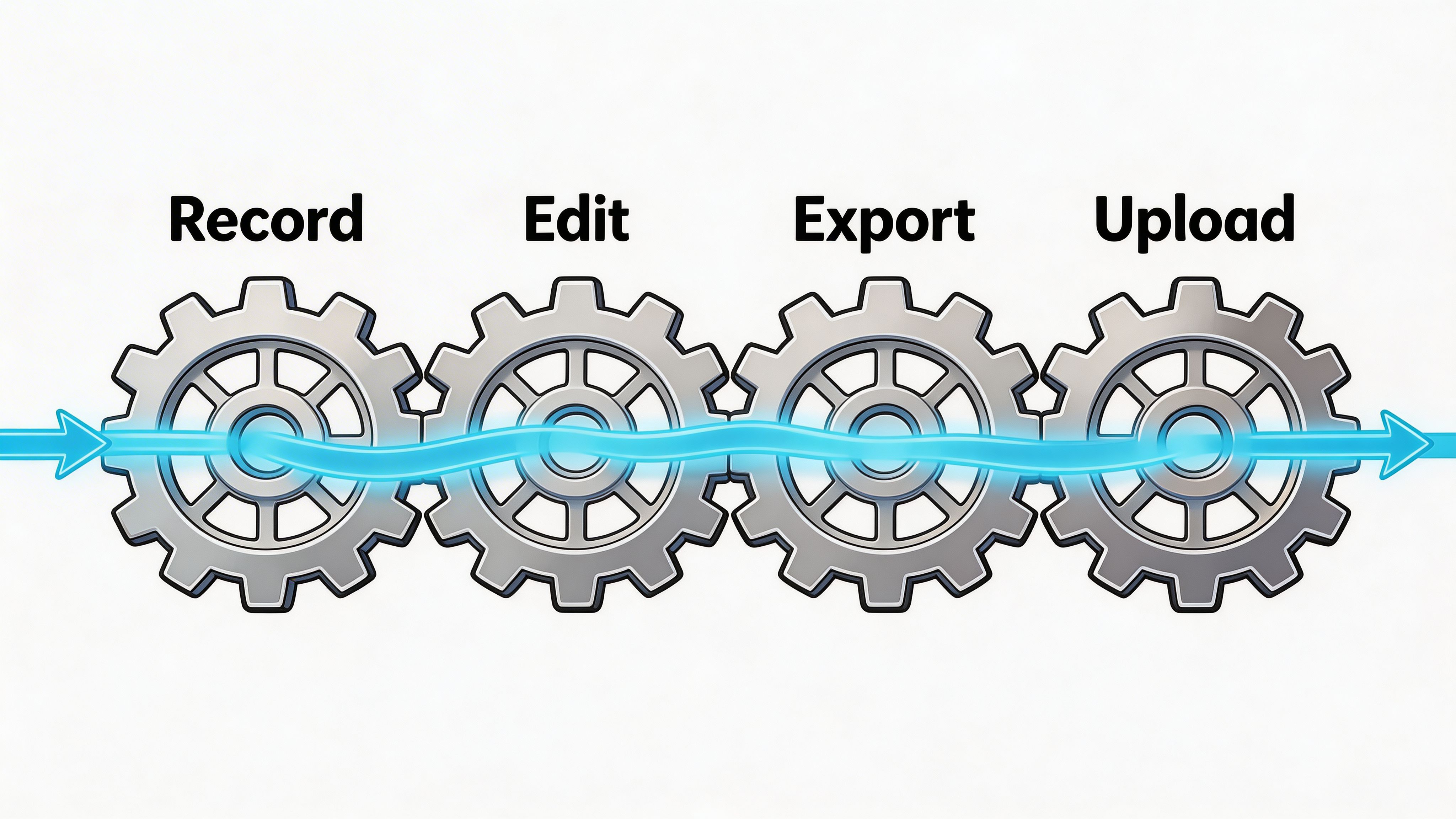
Long-form content often looks stable in one continuous upload. Then someone slices out a vertical clip, adds captions, reframes the shot, exports again, uploads again, and suddenly a tiny offset appears at the cut point. That happens because every new processing step is another chance to introduce timing mistakes.
The workflow that holds up better
A safer workflow is built on checkpoints, not rescue fixes.
Record with consistent settings. Standardize questionable source files before editing. Keep one timeline frame rate. Keep one audio standard. Export a test. Verify on more than one playback setup. Then repurpose from the clean master, not from a messy intermediate file.
That matters even more if your source is a podcast, webinar, interview, tutorial, or stream replay. Those formats are long enough for small drift to become obvious.
Repurposing adds pressure to every weak step
Short-form clips are unforgiving.
A talking-head short with captions makes lip-sync errors easier to notice because the viewer sees the mouth, hears the word, and reads the text at the same time. If any one of those lags, the clip feels low quality.
A few habits reduce that risk:
- Clip from approved masters: Do not cut social clips from random exports or downloaded copies.
- Review transitions closely: Shorts rely on tighter cuts, so hidden offsets become visible.
- Check caption timing manually: Auto-captions can reveal sync issues you missed by ear.
- Avoid repeated export chains: Every extra render is one more place for timing to slip.
If you are building a repeatable shorts process, https://klap.app/blog/how-to-create-youtube-shorts-from-existing-video is a useful reference for turning existing long videos into vertical clips without reinventing the workflow each time.
The broader point is simple. Fixes are helpful. Prevention scales better. Once your process is stable, sync stops being a recurring fire drill and becomes another quality control check.
Your Path to Permanently Synced Audio
Youtube sound out of sync feels chaotic when you do not know where it started.
It gets easier when you diagnose in order. First rule out playback problems like hardware acceleration, cache issues, or Bluetooth lag. Then inspect the edit for clip offsets, mixed frame rates, and sample-rate drift. Finally, scrutinize export choices, especially VFR footage and any preset you did not fully verify.
The core habits are not glamorous, but they work. Use stable source media. Convert VFR footage before editing when needed. Keep frame rate and audio settings consistent. Test before publishing. Review the uploaded result on more than one device.
That approach does more than fix one broken upload. It protects the clips you cut afterward. If you repurpose long videos into Shorts, Reels, or TikToks, a sync-stable master saves a huge amount of cleanup later.
Audio sync is not luck. It is discipline across playback, editing, and export.
If you want to turn long videos into social-ready clips without spending hours re-cutting everything by hand, Klap is built for that workflow. You can upload a file or paste a YouTube link, let the AI find strong moments, generate captions, reframe for vertical platforms, and review the clips before export. It is a practical way to repurpose webinars, podcasts, interviews, and YouTube uploads into shorts while keeping your production process faster and cleaner.